
Blog
Windstripe Themes
2 minutes read
Despite our description, some people need more confirmation and we decided to explain in detail the difference between our template version and Helix Ultimate template (the starter template we use for our templates) version.

Windstripe Themes
2 minutes read
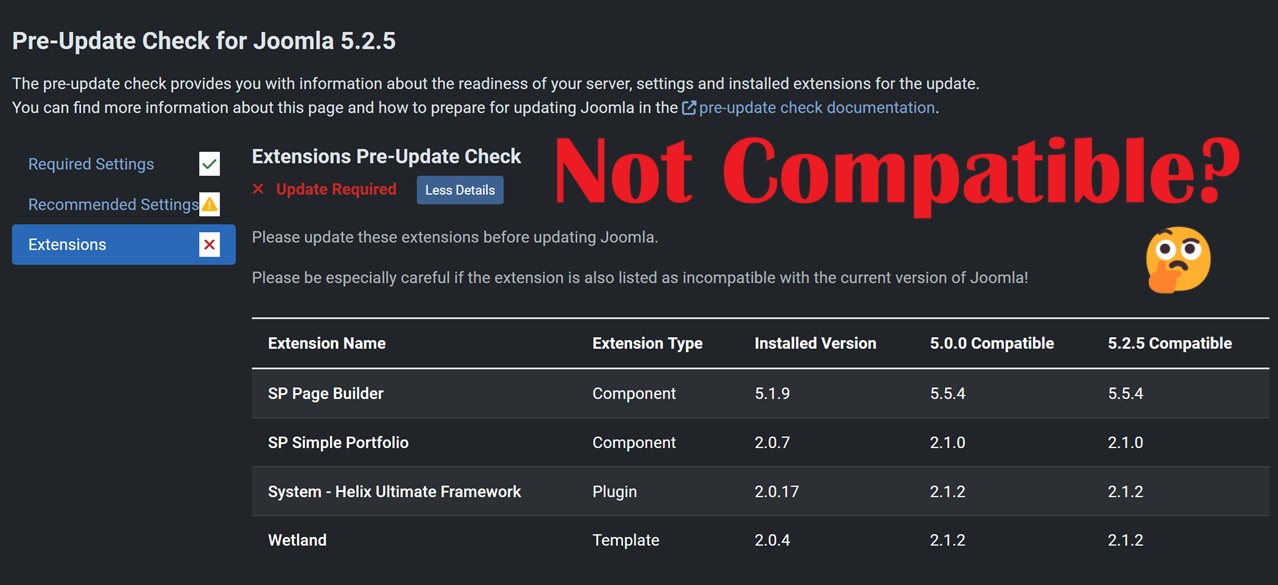
We recently got Joomla 5 compatibility for Helix Ultimate framework and SP Page Builder 5, so in this post we are going to show you how to proceed with the update. Please note that if you are still using SP Page Builder 3, you cannot make the update yet, but don’t worry, we will add the 5th version to our packages soon.

Windstripe Themes
2 minutes read
Another question we encounter often is how to get the page title and the breadcrumbs looking like in the demo. You may have noticed that the non-home pages of our demos usually have at the top a title and the link path to the page along side a background image.

Windstripe Themes
2 minutes read
We often get asked about the available icons in our templates and how can they be customized. In this post I will show you where to find the icons in our templates and how to replace them.

Windstripe Themes
1 minute read
You may be aware of our installation method 2 from the documentation where we provided all the details needed for you to have the template looking like in the demo, but sometimes the users encounter issues following these steps, mainly because they don’t see the changes happening after they take certain steps.

Windstripe Themes
4 minutes read
Egestas luctus vitae augue and ipsum ultrice quisque in cursus lacus feugiat congue diam ultrice laoreet sagittis

Windstripe Themes
5 minutes read
We had a lot of questions lately regarding how someone can modify the css from our templates. We added in our documentation the places where you can find all the styling applied to our Joomla templates, but many people encounter problems in finding those places, especially when it comes to editing the custom.css file.