
Blog

Windstripe Themes vs TemplateMonster: Where to Buy Premium Joomla 5 & 6 and WordPress Themes in 2026
Windstripe Themes
9 minutes read
Quick Answer: You can buy the same premium Joomla and WordPress themes created by Windstripe Themes either on TemplateMonster or directly at shop.windstripethemes.com. Buying directly from the official shop gives you a significantly lower price, more flexible licensing options, and a more comprehensive, personalized support experience — all coming directly from the developer.
Windstripe Themes
2 minutes read
Joomla 6 has just been released, and many of you have already asked when our templates will be updated for compatibility. The good news is — there’s no need to wait! Based on our testing, all of our templates are already fully compatible with Joomla 6.
Windstripe Themes
2 minutes read
Over the past few months we asked a simple question to visitors of our site: should we use the new Dynamic Content feature in SP Page Builder in our templates for common page types, or keep using the classic approach (one page for listings and one page per item)? The response was overwhelmingly in favour of Dynamic Content.
Windstripe Themes
2 minutes read
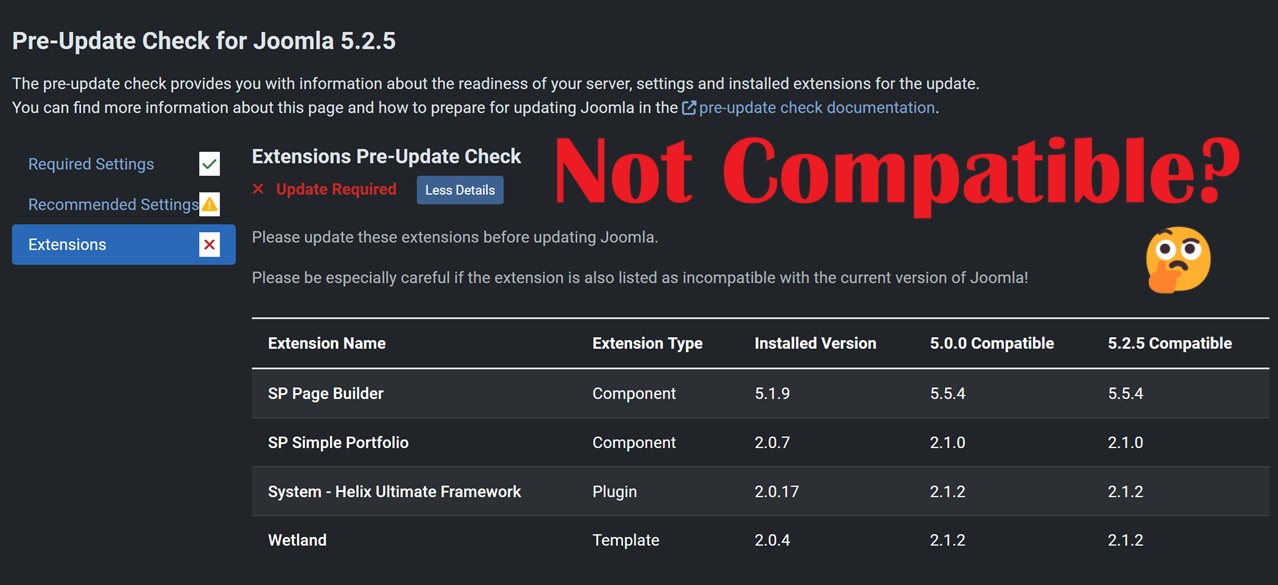
Despite our description, some people need more confirmation and we decided to explain in detail the difference between our template version and Helix Ultimate template (the starter template we use for our templates) version.

Windstripe Themes
2 minutes read
We recently got Joomla 5 compatibility for Helix Ultimate framework and SP Page Builder 5, so in this post we are going to show you how to proceed with the update. Please note that if you are still using SP Page Builder 3, you cannot make the update yet, but don’t worry, we will add the 5th version to our packages soon.

Windstripe Themes
2 minutes read
As you may know, we are fans of the Sp Page Builder, but we are not that fond of its front end editor. Wheter we are talking about the 3rd or the 4th version, the main bug that prevents us from using and recommend it is the custom css section.

Windstripe Themes
2 minutes read
Another question we encounter often is how to get the page title and the breadcrumbs looking like in the demo. You may have noticed that the non-home pages of our demos usually have at the top a title and the link path to the page along side a background image.

Windstripe Themes
2 minutes read
We often get asked about the available icons in our templates and how can they be customized. In this post I will show you where to find the icons in our templates and how to replace them.

Windstripe Themes
1 minute read
You may be aware of our installation method 2 from the documentation where we provided all the details needed for you to have the template looking like in the demo, but sometimes the users encounter issues following these steps, mainly because they don’t see the changes happening after they take certain steps.